
If you’ve been doing SEO for a while, you’ve probably stumbled upon the frustrating How to unlock not provided keywords in Google Analytics. Imagine seeing your traffic numbers climb but having no clue which search terms are actually driving it. It’s like trying to find treasure in the dark without a map.
Back in the early 2010s, marketers had a clear view of all the keywords that brought visitors to their websites. But Google changed the game in 2011, encrypting searches for users logged into their accounts. By 2013, nearly all organic searches were encrypted, leaving most of our keyword data hidden. This was a huge shift in SEO strategy, forcing marketers to think creatively to uncover insights.
The good news? You can still recover this valuable data. In this guide, we’ll show you how to unlock not provided keywords in Google Analytics with practical, step-by-step methods that even beginners can follow.
Understanding how to unlock not provided keywords in Google Analytics
When Google marks a keyword as “not provided”, it simply means the search term used by a visitor is encrypted for privacy reasons. This protects users but creates a massive gap in analytics.
For example, an e-commerce store may notice that visitors landed on a product page but won’t know if they searched for “best running shoes for beginners” or “cheap sneakers size 9”. These phrases reflect completely different buyer intents, and without knowing them, optimizing content and measuring SEO ROI becomes much harder.
Studies suggest that up to 97% of organic keyword data is hidden unlock not provided keywords in Google Analytics. That’s like looking at the tip of the iceberg while the rest is underwater.
Step 1: Link Google Search Console to Google Analytics
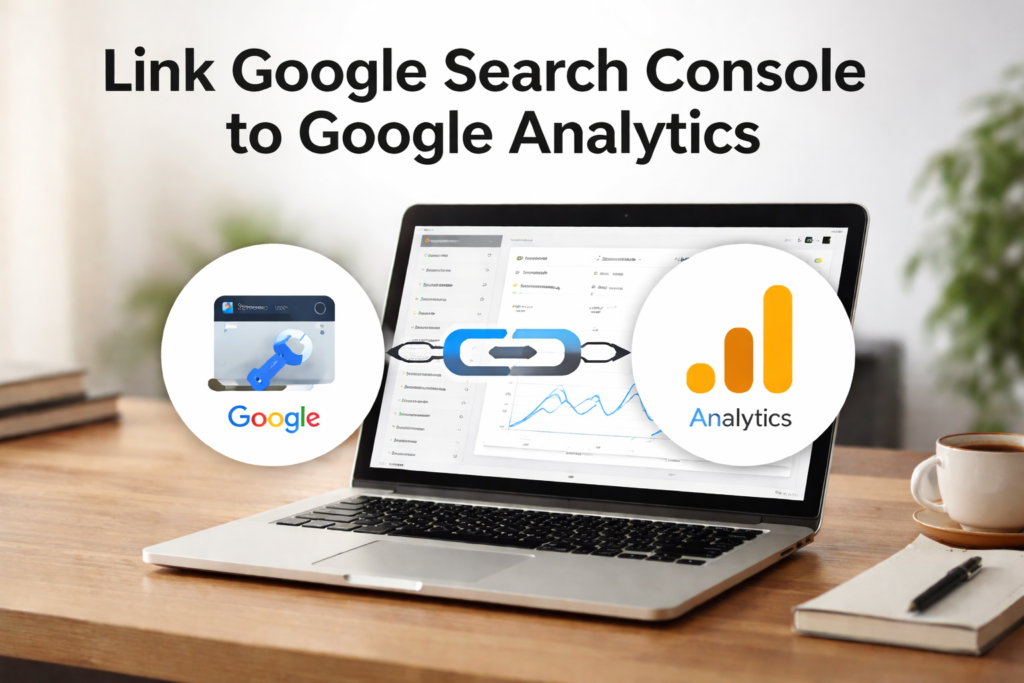
The first and most important step to recover hidden keyword data is connecting Google Search Console (GSC) to your Google Analytics account. While Analytics shows post-click behavior, GSC reveals pre-click insights—the queries users typed before landing on your website.
How to connect:
- Log in to Google Analytics.
- Navigate to Admin > Property > All Products.Click Link Search Console and follow the prompts.
- Once linked, you’ll see top queries, impressions, clicks, CTR, and average positions.
Example: A local plumbing company might discover that “emergency plumber near me” gets many impressions but low clicks. This insight indicates the page’s meta description might need improvement to encourage more users to click. Learn more about meta descriptions here.
Step 2: Understand the Not Provided Meaning
It’s crucial to understand the not provided meaning to unlock not provided keywords in Google Analytics. Simply put, Google has intentionally hidden these keywords to protect user privacy. This isn’t missing data—it’s encrypted.
Knowing this allows you to stop obsessing over single keywords and instead focus on search intent, topic relevance, and content optimization strategies that satisfy your audience’s needs.
Step 3: Analyze Landing Pages for Clues
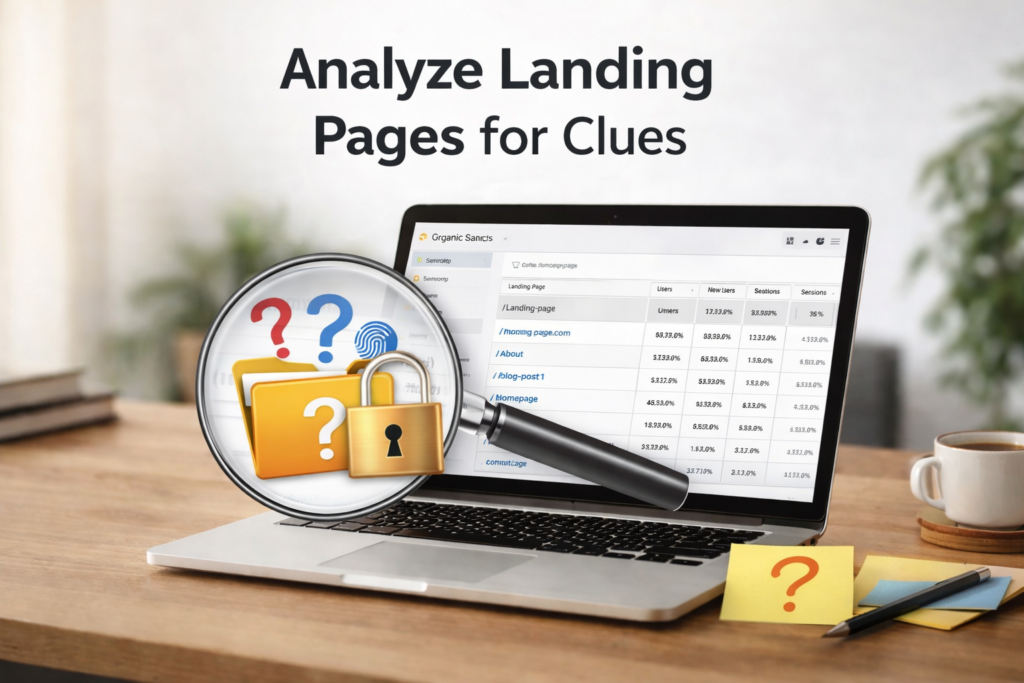
Even if specific keywords are hidden, landing pages act as windows into user behavior. Each page can reveal the general topic or query it was optimized for.
Steps to analyze landing pages:
- Go to Behavior > Site Content > Landing Pages in Google Analytics.
- Filter for Organic Traffic.
- Identify the top 5–10 performing pages.
Then, determine the main topic of each page. For example, a blog post titled “5 Signs You Need Roof Repair in Clearwater” likely attracts searches like “roof repair Clearwater” or “signs of roof damage Florida”. Cross-reference these with GSC data to confirm your assumptions.
Step 4: Leverage Paid Search Data
Paid search campaigns provide a direct view of what users are searching for. Unlike organic traffic, paid keywords aren’t hidden. By analyzing high-converting paid search terms, you can discover phrases worth targeting organically.
Example: A law firm running Google Ads may find that “car accident lawyer Tampa free consultation” converts three times better than the broader “Tampa injury attorney”. This insight informs content creation, service pages, and on-page SEO.
Step 5: Use Advanced SEO Tools
After maximizing GSC and landing page insights, advanced SEO platforms like Ahrefs, SEMrush, and Moz can fill the remaining gaps. These tools allow you to:
- Estimate missing keyword data
- Track competitor rankings
- Discover content opportunities
For a tool built specifically to recover not provided keywords, Keyword Hero is a game-changer.
Benefits of Keyword Hero:
- Matches organic sessions to probable keywords using machine learning
- Integrates with Google Analytics
- Creates a separate GA property to keep original data safe
- Uncovers up to 90% of previously hidden keywords, even on the Free plan
Step 6: Implement Keyword Hero
Step-by-step setup:
- Connect your Google Analytics and Search Console accounts.
- Create a mirror GA property for Keyword Hero data.
- Select tracking type: e-commerce or conversion goals.
- Choose a pricing plan—start free and upgrade as needed.
- Wait up to 24 hours for unlocked keyword data to appear.
Once the setup is complete, analyze data by landing page, keyword position, and custom dimensions. Focus on keywords in positions 11–20—they’re low-hanging fruits that can be boosted onto the first page through backlinks or content updates.
Step 7: Turn Insights Into Action
Use the unlocked keywords to build a data-driven content calendar. Merge high-performing organic landing pages with high-converting paid search queries.
Example: If a page about “DIY kitchen remodels” receives high traffic, and paid ads show “cost-effective cabinet refacing” converts well, create a post titled “Cabinet Refacing: A Cost-Effective DIY Kitchen Remodel”.
Prioritize pages based on potential impact:
- High traffic, low conversions: Optimize calls-to-action and on-page messaging
- Low traffic, high potential: Optimize titles, headers, and internal linking
Step 8: Monitor and Iterate
SEO is an ongoing process. Track how changes affect rankings, CTR, and conversions. Continually refine content using insights from Keyword Hero, GSC, and landing page analysis to maintain growth and visibility.
Conclusion
Unlocking how to unlock not provided keywords in Google Analytics might seem impossible, but with the right strategy and tools, it’s completely achievable. By leveraging Google Search Console, analyzing landing pages, mining paid search data, and using Keyword Hero, you can regain visibility into your search traffic, understand user intent, and drive more traffic and conversions.
Are you ready to finally say goodbye to not provided keywords and gain actionable insights into what’s truly driving traffic to your site? Start today and transform your SEO strategy into measurable results unlock not provided keywords in Google Analytics.
FAQ’s..
How do I force a keyword in Google search?
Use quotes around a keyword or phrase in Google search, e.g., "best running shoes", to force Google to show results containing that exact term.
How do I add keywords in Google Analytics?
You can’t directly add keywords in GA. Instead, link Google Search Console to see organic keywords, or track keywords via campaigns using UTM parameters in GA
What are the 4 types of keywords?
Short-tail (head) – Broad, 1–2 words.
Long-tail – Specific, 3+ words.
Branded – Includes a brand name.
Non-branded – General searches without a brand mention.
How much does a 1000 impressions cost in Google Ads?
Cost depends on CPM (Cost Per Thousand Impressions), which varies by industry, competition, and targeting. Typical CPM ranges from $1–$10+, but high-demand niches may cost more.
How to get keywords in Google search?
Use Google Search Console, Google Autocomplete, related searches, and SEO tools like SEMrush or Ahrefs to discover what users search for and identify target keywords.
What is not Google Analytics?
Anything not tracking user behavior, traffic, or conversions. Google Analytics is specifically a web analytics tool; alternatives include MALToma , Adobe Analytics, or server logs, but generic tools like spreadsheets are not GA.
How do I provide access to Google Analytics?
Go to Admin → Account/Property → Account/Property/User Management, click “+ Add Users,” enter the email, assign permissions (Read, Edit, or Admin), and save. The invited user gets access via their Google account.